


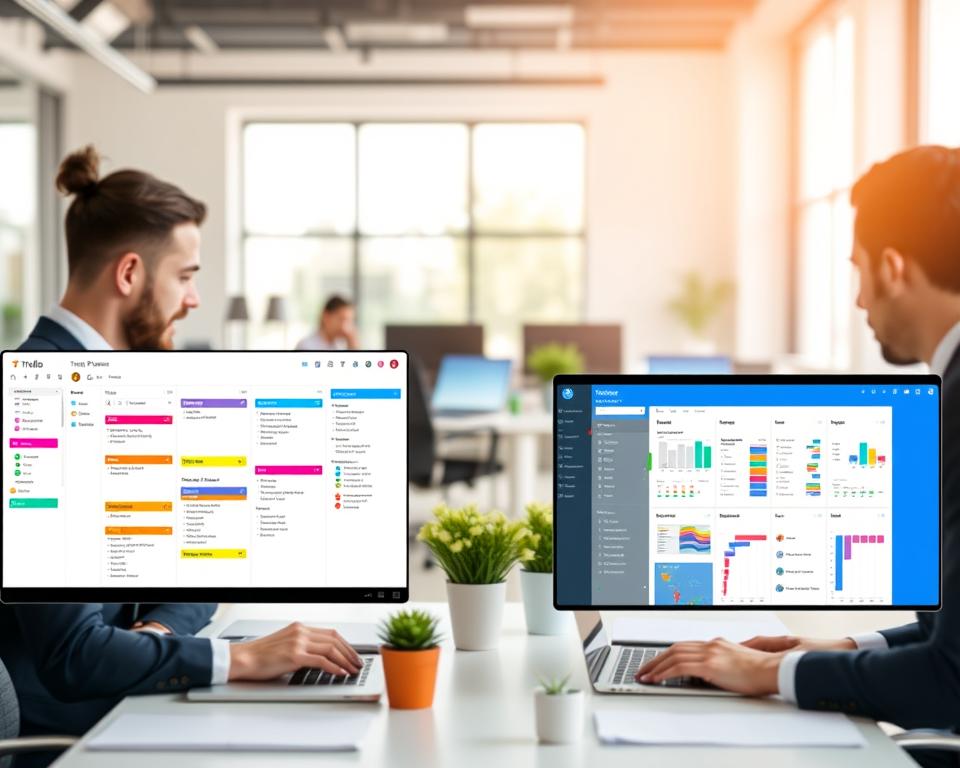
Did you know that businesses using project management tools see a 30% increase in productivity on average? Finding the best task tracking solution can be tough. This is because there are many options, like Trello and Microsoft Planner.
I recently looked into these two popular tools. Trello is famous for its Kanban boards. Microsoft Planner, on the other hand, works well with other Microsoft tools.
It’s important to know what each platform does well and what it doesn’t. This helps with project management. Here, I’ll give you a quick rundown of what to expect from each.
Key Takeaways
- Overview of Trello and Microsoft Planner’s key features
- Comparison of their task tracking capabilities
- Integration with other productivity tools
- User interface and experience differences
- Scalability for different project sizes
Overview of Trello
Trello is known for its simplicity and effectiveness in the world of productivity tools. It uses a Kanban board to help teams see their work clearly. This makes it easier to manage tasks and projects.
Key Features of Trello
Trello’s main features include a flexible board structure. Tasks are shown as cards that can move across lists. This lets teams track their progress and change their workflow as needed.
- Boards, Lists, and Cards: The core components of Trello, allowing for a customizable workflow.
- Labels and Due Dates: Enhancing task organization with color-coded labels and deadlines.
- Integrations: Seamless integration with various third-party apps to extend functionality.
User Interface and Experience
Trello’s interface is clean and easy to use, perfect for new users. Its drag-and-drop feature makes managing tasks simple. This lets users focus on their work without getting lost in complex software.
The visual nature of Trello’s boards makes workflow easy to see. This promotes transparency and teamwork.
Ideal Use Cases for Trello
Trello is versatile and works well in many areas, from software development to marketing. Its flexibility is great for teams that need to adjust quickly to project changes.
Some of the best uses for Trello include:
- Project Management: Trello is excellent for managing projects. It helps teams break down big tasks into smaller, easier ones.
- Content Calendar: Marketing teams use Trello to plan and schedule content. This ensures a steady flow of publications.
- Personal Productivity: Trello can also help individuals organize their tasks and goals. This boosts personal productivity.
Overview of Microsoft Planner
Microsoft Planner is great for teams that use Microsoft tools. It makes managing tasks and projects easy. It’s part of the Microsoft 365 suite and has features for teams using Microsoft apps.
Key Features of Microsoft Planner
Microsoft Planner helps teams organize their work well. It has:
- Task assignments and due dates
- File sharing and collaboration
- Integration with Microsoft Teams and other Microsoft 365 apps
- Progress tracking through charts and reports
These features help teams manage tasks and projects. They keep everyone working together towards goals.
User Interface and Experience
The user interface of Microsoft Planner is easy to use. It’s simple and looks like other Microsoft 365 apps. This makes it familiar for users.
Ideal Use Cases for Microsoft Planner
Microsoft Planner is best for teams using Microsoft tools. It’s great for:
- Project management within Microsoft Teams
- Task management for small to medium-sized projects
- Collaboration on documents and files stored in SharePoint or OneDrive
To show what Microsoft Planner can do, let’s compare it with Trello:
| Feature | Microsoft Planner | Trello |
|---|---|---|
| Task Assignments | Yes, with due dates | Yes, with due dates |
| File Sharing | Yes, integrates with SharePoint and OneDrive | Yes, with attachments and integrations |
| Integration with Other Apps | Deep integration with Microsoft 365 apps | Wide range of integrations through Power-Ups |
| Progress Tracking | Yes, through charts and reports | Yes, through boards and cards |
This comparison shows Microsoft Planner’s strengths. Its deep integration with Microsoft 365 apps makes it a strong tool for teams using these services.
Task Organization in Trello
Trello’s core is its boards, lists, and cards. They help organize tasks well. This setup makes projects and tasks easy to see and manage.
Lists, Cards, and Boards Explained
Trello uses boards, lists, and cards for task management. Boards are the main project area. Lists are columns for organizing tasks. Cards are the tasks themselves.
For example, a marketing team might have a board for a campaign. It has lists for “To-Do,” “In Progress,” and “Completed.” Each card could be a task like “Create Social Media Posts” or “Design Email Newsletter.”

Labeling and Categorization
Trello lets you label cards with colors and names. This makes it simple to sort tasks by priority, type, or who’s doing them. It’s great for project tracking because it shows the task’s status and type quickly.
A software development team might use labels for bug fixes, new features, and documentation. This keeps everyone informed.
Assigning Due Dates and Comments
Trello cards can have due dates and comments. This helps tasks get done on time and keeps team members talking. Due dates set deadlines, and comments let teams discuss and update tasks.
| Feature | Description | Benefit |
|---|---|---|
| Due Dates | Assign deadlines to tasks | Enhances time management and task prioritization |
| Comments | Discuss tasks within cards | Fosters collaboration and reduces email clutter |
| Labels | Categorize tasks with colors and names | Improves task identification and filtering |
A Trello user said, “Assigning due dates and commenting on cards has changed our team’s workflow. It makes managing big projects easier.”
“Trello is essential for our team. It helps us organize tasks well and track progress in real-time.”
In summary, Trello’s features like lists, cards, boards, labeling, due dates, and comments make it a top task tracking app. These tools help teams work better and track projects more effectively.
Task Organization in Microsoft Planner
In Microsoft Planner, tasks are grouped into buckets. This makes it easy to manage projects. Teams can see tasks and track progress clearly.
Buckets and Task Cards
Microsoft Planner uses buckets to hold tasks. Each task has a task card with details like name, who it’s for, and when it’s due.
Here’s how it works:
- Create a bucket for “To-Do” tasks
- Assign tasks to team members using task cards
- Move tasks across buckets as they progress (e.g., from “To-Do” to “In Progress” to “Done”)
Task Assignments and Deadlines
Assigning tasks and setting deadlines is easy in Microsoft Planner. Tasks can be given to specific people or groups. This makes sure everyone knows what to do.
Deadlines are key for success. Microsoft Planner lets you set due dates for tasks. You can also set up reminders for team members.
| Task Assignment Feature | Description | Benefit |
|---|---|---|
| Task Assignment | Assign tasks to team members or groups | Clear responsibilities |
| Due Dates | Set deadlines for tasks | Timely completion |
| Notifications | Remind team members of deadlines | Reduced missed deadlines |
Visualizing Progress with Charts
Microsoft Planner has charts to show project progress. These charts help see how tasks are spread out, how they’re going, and where things might slow down.
“The use of charts in Microsoft Planner has significantly improved our ability to track project progress and make data-driven decisions.”
These features help teams manage tasks and projects well. This leads to successful project outcomes.
Collaboration Features in Trello
Trello makes teamwork easy. It helps team members work together better. This boosts productivity and makes managing projects easier.
Team Communication Tools
Trello has tools to help teams talk better. The commenting system lets team members chat on cards. This cuts down on emails and messages.
The @mention feature tags team members. This makes sure they know about important talks or updates.
Integrations with Other Platforms
Trello works well with many apps. It connects with Google Drive, Slack, and Microsoft Teams. This helps teams use different tools together.
By linking Trello with other apps, teams can do tasks faster. They can also make their project management better.
Sharing Boards for Transparency
Being open is key for good project management. Trello lets users share boards with others. This keeps everyone informed.
Admins can control who sees or changes boards. This keeps things safe while encouraging teamwork.
Collaboration Features in Microsoft Planner
Microsoft Planner has many features to help teams work better together. It works well with other Microsoft tools, making teamwork easier.
Integration with Microsoft Teams
Microsoft Planner works great with Microsoft Teams. This means team members can handle tasks in Teams without switching apps. It’s easy to assign tasks, track progress, and get updates right in Teams.

File Sharing and Comments
Microsoft Planner makes it easy to share files and comment on tasks. Team members can add files and leave comments. This keeps all project info in one place, cutting down on email threads and file sharing sites.
Task Notifications and Updates
Microsoft Planner keeps everyone in the loop with task notifications and updates. Users get alerts when tasks are assigned or deadlines near. This helps teams stay on schedule and finish tasks on time.
These features make teams more productive and efficient. Microsoft Planner’s integration with other tools and real-time updates make it a top choice for managing tasks.
Mobile Accessibility Comparison
Mobile accessibility is key when picking between Trello and Microsoft Planner for project tracking. Today’s fast work pace means we need to manage tasks anywhere. This is vital for staying productive.
Trello’s Mobile App gives a great mobile experience. It lets users access boards, lists, and cards from anywhere. It works on both iOS and Android, so users can stay connected no matter their device.
Trello’s Mobile App Functionality
Trello’s mobile app is easy to use and full of features. It includes:
- Easy card creation and assignment
- Due date reminders and notifications
- Attachment and comment capabilities
- Board and list management
The Trello mobile app is perfect for managing tasks and projects on the go. It’s great for teams that need to be flexible and mobile.
Microsoft Planner’s Mobile Experience
Microsoft Planner also has a mobile app for managing tasks and plans anywhere. It works well with Microsoft Teams and other Microsoft 365 tools. This makes it seamless for users in the Microsoft ecosystem.
Key Features of Microsoft Planner’s Mobile App include:
| Feature | Description |
|---|---|
| Task Management | Create, assign, and track tasks |
| Plan Sharing | Share plans with team members |
| Progress Charts | Visualize progress with charts |
Microsoft Planner’s mobile app is great for teams using Microsoft 365. It integrates well with other tools, making project tracking better.
In conclusion, both Trello and Microsoft Planner have strong mobile apps. Trello’s app is flexible and easy to use. Microsoft Planner’s app is best for those in the Microsoft ecosystem.
Pricing Models for Task Management Tools
The cost of task management tools can vary a lot. It’s important to look at the prices of Trello and Microsoft Planner. Both offer different plans for various users, from individuals to big companies.
Trello Pricing Options
Trello has a freemium model. It offers a free plan for small teams or personal use. For more features and bigger teams, Trello has several paid plans:
- Standard: Costs $5 per user per month. It includes Butler automation, calendar view, and unlimited integrations.
- Premium: Priced at $10 per user per month. It adds calendar power-ups, advanced checklists, and priority support.
- Enterprise: Has custom pricing for big organizations. It offers advanced security, dedicated support, and more.
Trello’s prices are good for small teams or those in the Atlassian ecosystem.
Microsoft Planner Pricing Structure
Microsoft Planner comes with Microsoft 365 subscriptions. It’s a great addition for businesses using these services. There’s no separate price for Planner; it’s part of Microsoft 365 plans:
- Microsoft 365 Business Basic: Starts at $6 per user per month. It includes Planner and other apps.
- Microsoft 365 Business Standard: Costs $12.50 per user per month. It offers more features than Planner.
- Microsoft 365 Enterprise: Offers custom pricing for big organizations. It includes advanced security and compliance features.
For Microsoft 365 users, Planner is free. For others, the price depends on the Microsoft 365 plan chosen.
In conclusion, when comparing Trello and Microsoft Planner prices, think about the value each tool offers. Consider how they help with productivity and task management.
Security and Compliance Considerations
Businesses rely more on digital task management tools. It’s key to look at their security and compliance. Tools like Trello and Microsoft Planner have different ways to protect data and follow rules.
Trello’s Security Features
Trello has strong security features. It offers two-factor authentication for extra security. It also uses data encryption to keep data safe.
Trello lets admins control who can see or change boards and lists. This gives detailed control over access.

For more on Trello’s security, check their official site. Trello’s security fits many needs and rules.
Microsoft Planner’s Compliance Standards
Microsoft Planner is part of Microsoft 365. It follows big rules like GDPR and HIPAA. It also meets ISO 27001 standards.
Microsoft Planner has strong data protection. This includes encryption and access controls. It’s part of Microsoft 365, making it easy to manage files and chats.
In short, Trello and Microsoft Planner are both secure and follow rules. The right choice depends on your business needs. Knowing their security and rules helps make a smart choice for managing tasks.
Customization and Flexibility
Trello and Microsoft Planner are great for tailoring task management tools to your needs. They offer flexibility to fit various project requirements. This is key for managing tasks well.
Customizing Boards in Trello
Trello’s board customization is a standout feature. It lets users create a workflow that suits them. You can personalize boards with different lists, cards, and labels to sort tasks well.
For example, you can make lists for project stages and cards for tasks. This makes tracking progress easier.
Trello also lets you add due dates, attachments, and comments to cards. This boosts the task management process. Plus, Trello’s Power-Ups feature adds more functions like calendar views and time tracking.
Tailoring Microsoft Planner to Your Needs
Microsoft Planner has many customization options for different project tracking needs. Users can make buckets to organize tasks into categories. This helps manage complex projects better.
Tasks can be assigned to team members, and deadlines set for on-time completion. Planner also lets you add detailed task descriptions and attachments. This gives a full view of each task.
Plus, task progress can be seen through charts. This gives a clear picture of the project’s status.
Performance and Speed
Task management tools like Trello and Microsoft Planner need to be fast and efficient. In today’s quick work world, slow tools can really slow you down.
Both Trello and Microsoft Planner aim to be quick and easy to use. But, they perform differently in various situations. Let’s look at how Trello and Microsoft Planner stack up to see which might be better for you.
Trello Performance Metrics
Trello is famous for its easy-to-use design and strong performance. Here are some key points about Trello’s performance:
- Fast Loading Times: Trello boards load fast, even with lots of cards and lists.
- Responsive Design: Trello works well on both mobile and web, making it easy to manage tasks anywhere.
- Efficient Task Management: Trello’s card system makes managing tasks easy, with features like drag-and-drop.
Microsoft Planner Performance Review
Microsoft Planner is part of the Microsoft 365 family, giving it a strong task management setup. Here are some key performance points for Microsoft Planner:
- Integration with Microsoft 365: Microsoft Planner works well with other Microsoft 365 tools, boosting productivity.
- Reliable Task Assignments: It handles task assignments and deadlines well, with reminders to keep everyone on track.
- Visual Progress Tracking: Microsoft Planner’s charts and graphs make it easy to see how projects are doing.
In summary, both Trello and Microsoft Planner are fast and efficient, meeting different needs. Trello shines with its easy and quick design. Microsoft Planner, on the other hand, offers a full task management experience thanks to its Microsoft 365 integration.
Conclusion: Which Tool is Right for You?
After comparing Trello and Microsoft Planner, it’s clear they both are great for managing projects and boosting productivity. The choice depends on what you need and like best.
Key Considerations
Think about how complex your projects are and what tools you already use. If you like a flexible, visual way to manage tasks, Trello might be for you. It has boards, lists, and cards.
If you’re already using Microsoft Teams and Office 365, Microsoft Planner could be better. It works well with these tools.
Final Thoughts
The best tool for you is one that makes your team work better and be more productive. Try out both Trello and Microsoft Planner to see which fits your project management needs.
Using the right tool can make your workflow smoother, improve teamwork, and help your projects succeed.